Free desktop app · Windows & Mac
A world clock that lives on your desktop.
Keep four cities in view, see at a glance who's at work and who's asleep, and preview any meeting time before you send the invite. It's a small, calm widget that stays in the corner of your screen.
- 1.6 MB download
- No account
- Works offline
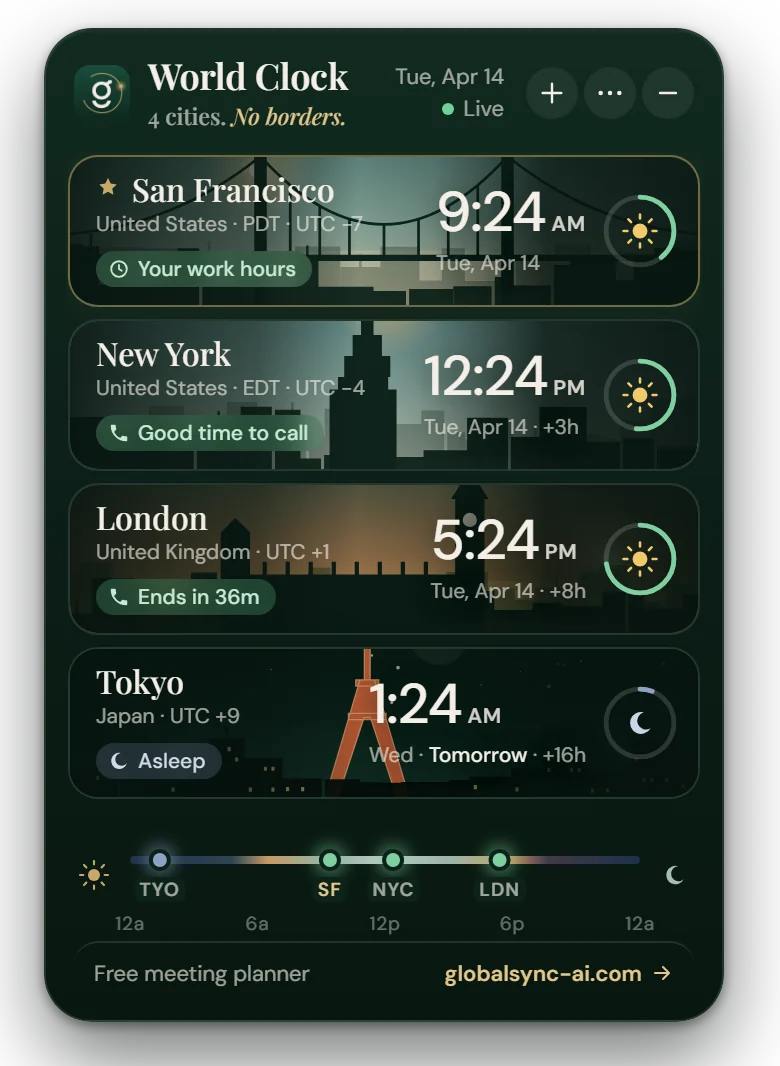
Everything a remote team checks, in one glance.
Made for people whose teammates, clients and family are spread across time zones.
A live sky for every city
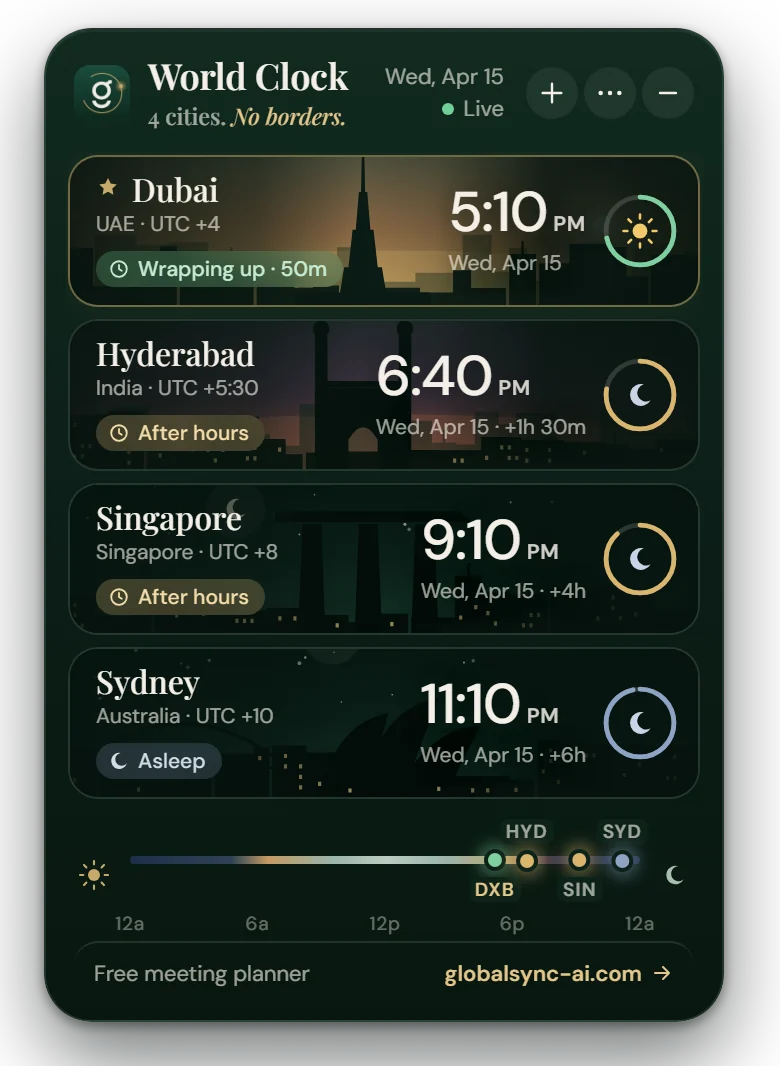
Each clock shows its city's real sky right now: dawn, daylight, golden hour or a starry night. Thirteen cities have hand-drawn landmarks, from the Golden Gate to the Charminar.
Know when to call
Every city carries a plain status: Good time to call, Starts in 40m, After hours, Asleep or Weekend. Weekends follow each country's working week.
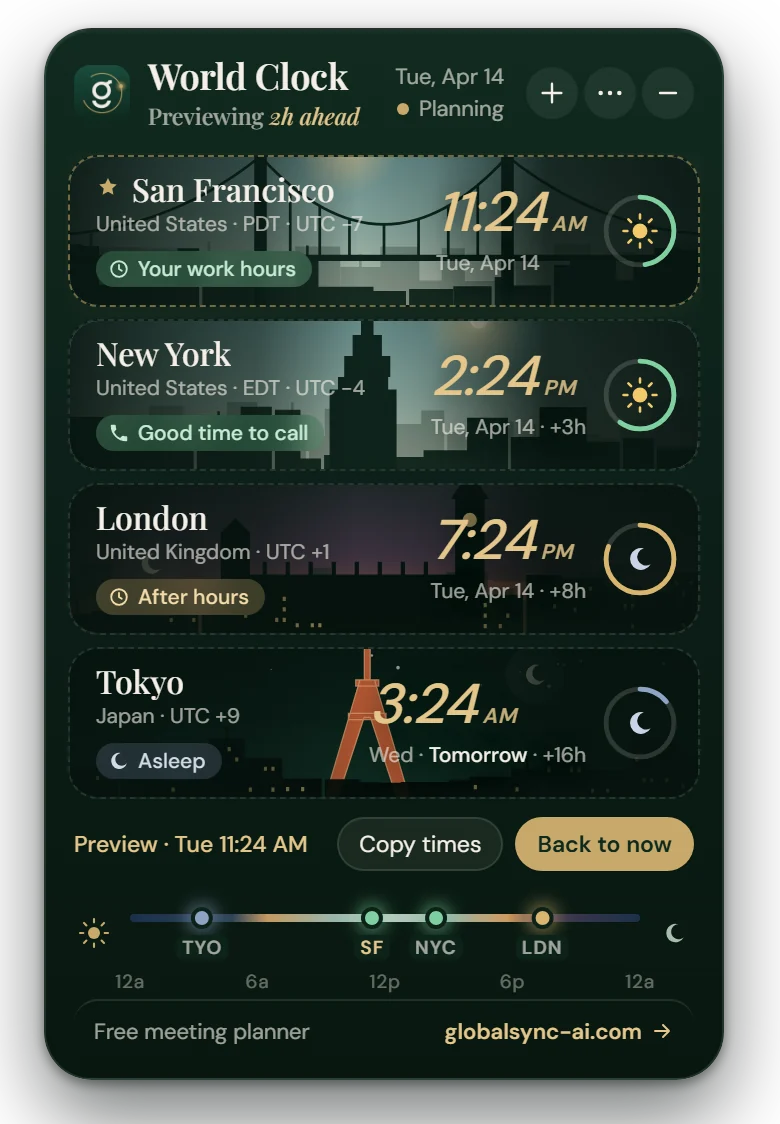
Preview any time
Drag the timeline to see all four clocks at a future time, then copy the times as a ready-to-paste list for your invite. It returns to live time after 90 seconds.
Four clocks, 160+ cities
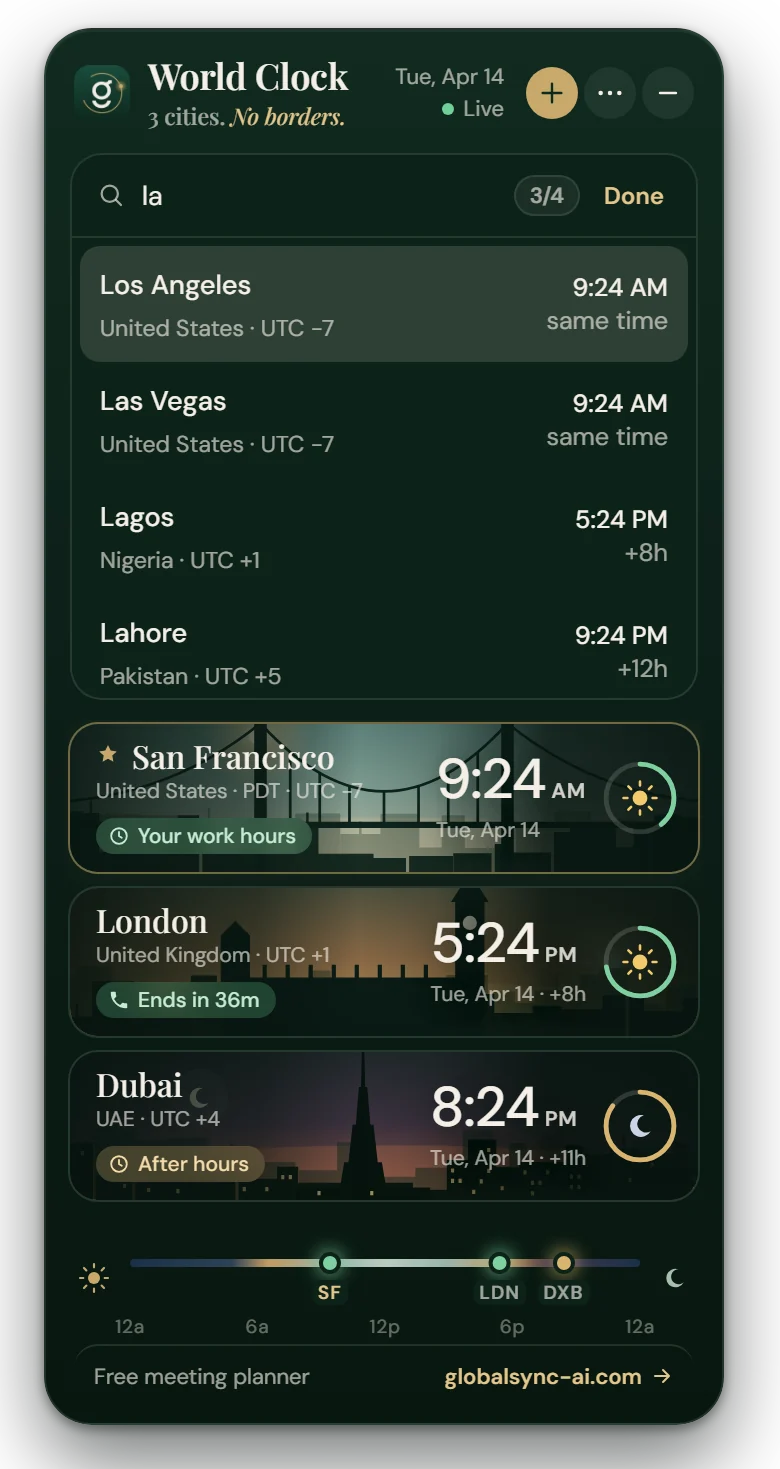
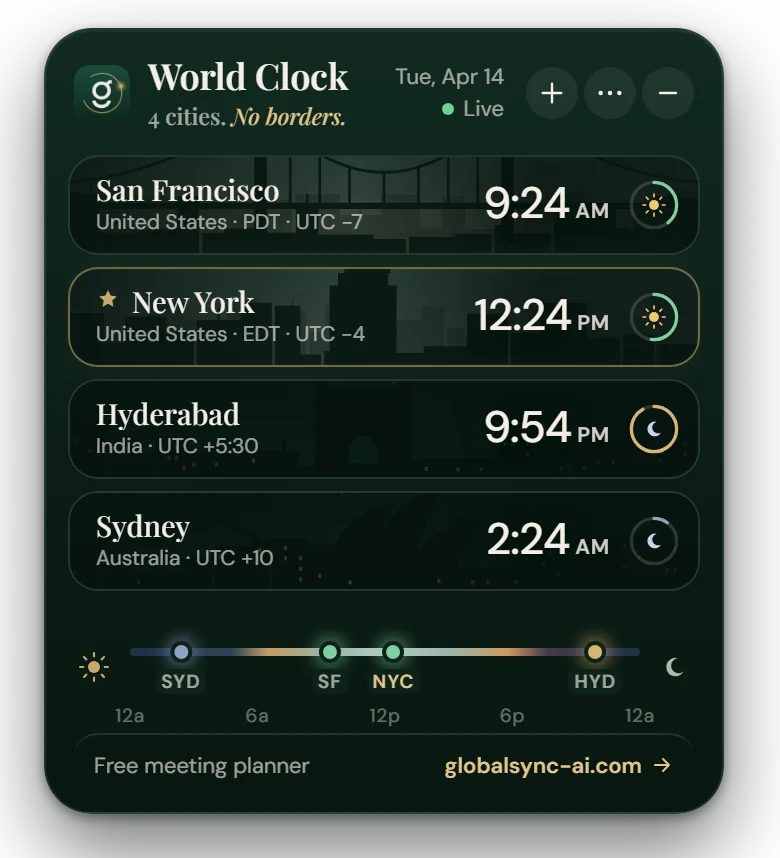
Search by city, country or airport code, plus every official time zone. Star your home city, reorder by dragging, and add a teammate's name to any clock.
Stays out of your way
Grab it anywhere and put it anywhere. It snaps to screen edges, remembers its spot across monitors, and hides or reappears with Ctrl+Alt+Shift+W (⌘⌥⇧W on Mac).
Tiny, private, offline
A 1.6 MB download that uses your system's own browser engine. No account, no tracking, and nothing leaves your computer. It works with no internet connection.
See it on the desktop
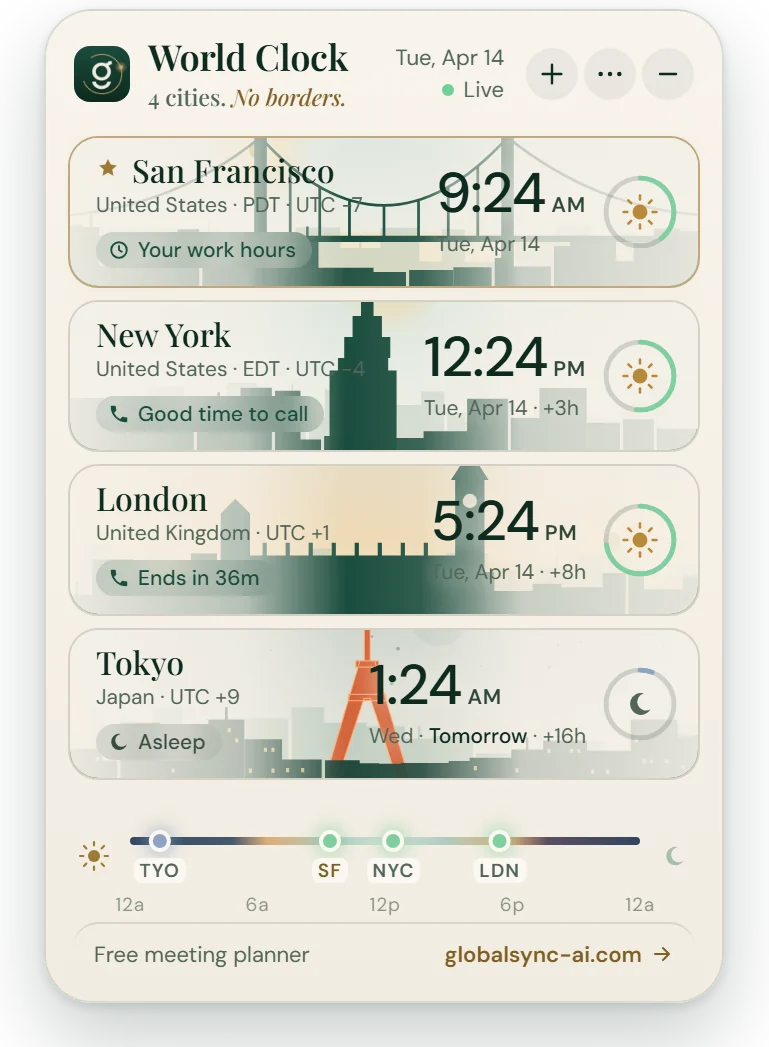
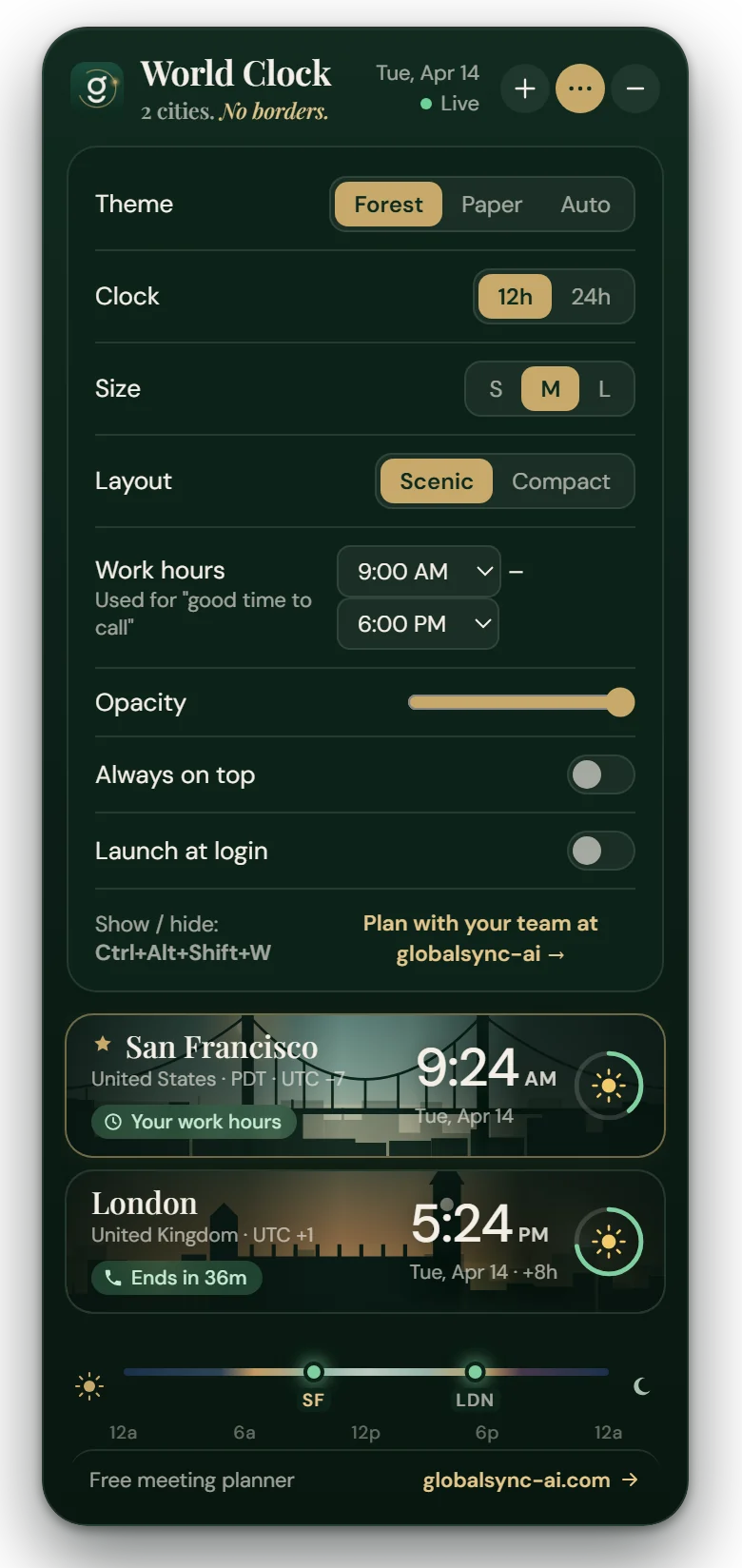
Real screenshots from the app. Two themes, a compact layout, and a sky for every hour.
Download
Free. Version 1.1.0, released September 27, 2026.
Windows
Windows 10 or 11 (64-bit)
Version 1.1.0 · 1.6 MB
Download .exe installerVerify the download (SHA-256)
d7dcba15c6c25ee36813197daf45148d8491e76e092ddba7f6c5ccde5e3eb3e2macOS
macOS 11 Big Sur or later · Intel and Apple Silicon
Version 1.1.0 · 4.1 MB
Download .dmg installerVerify the download (SHA-256)
4cd97c0c6212b6243cd00176d0c7b0eca7cfc12490e10dfa418dc01e6734b411Install on Windows
- Open GlobalSync-World-Clock-1.1.0-Windows-Setup.exe from your Downloads folder.
- If SmartScreen says "Windows protected your PC", choose More info → Run anyway. The app isn't code-signed yet.
- Follow the installer (Next → Install → Finish). It installs for your user only, so no admin rights are needed.
- The widget appears at the top-right of your screen. Drag it wherever you like.
Install on macOS
- Open the .dmg and drag GlobalSync World Clock into Applications.
- The first time, right-click the app → Open → Open. macOS asks once for apps that aren't notarized yet.
- The widget opens on your desktop and its icon sits in the menu bar. It doesn't take up space in the Dock.
Details
The technical facts in one place.
- Version
- 1.1.0 (2026-09-27)
- Download size
- Windows 1.6 MB · macOS 4.1 MB
- Platforms
- Windows 10 or 11 (64-bit) · macOS 11 Big Sur or later · Intel and Apple Silicon
- Price
- Free, no account required
- Privacy
- Settings stay on your device. No analytics, no network requests.
- Time data
- IANA time zone database built into your operating system; daylight saving handled automatically
- Show / hide shortcut
- Ctrl + Alt + Shift + W · ⌘ ⌥ ⇧ W on Mac
- Built with
- Tauri (a native shell using your system's browser engine), so it's small and light on memory
Questions
Is the GlobalSync World Clock free?
Yes. The widget is free to download and use, with no account, trial or ads.
Does the widget collect any data?
No. Your cities and settings are stored only on your computer. The widget sends no analytics and makes no network requests. The only exception is opening globalsync-ai.com when you click its link.
Why does Windows or macOS show a warning the first time?
The app is new and not yet code-signed, so Windows SmartScreen may say "Windows protected your PC". Choose More info, then Run anyway. On a Mac, right-click the app, choose Open, then Open again. You only need to do this once.
How many clocks can I show?
Up to four at a time. To swap one, hover over a clock, press ×, then add another. Removing a clock can be undone.
Does it handle daylight saving time?
Yes. Times come from the official IANA time zone database built into your operating system, so daylight saving changes and half-hour offsets such as India (UTC+5:30) are always correct.
How do I move or hide it?
Drag any part of the widget except the buttons and the timeline. Press Ctrl+Alt+Shift+W (⌘⌥⇧W on Mac), or use the tray or menu-bar icon, to hide it or bring it back.
How do I uninstall it?
Windows: Settings → Apps → Installed apps → GlobalSync World Clock → Uninstall. Mac: quit it from the menu-bar icon and drag the app from Applications to the Trash.
Planning with more than four cities?
The free web meeting planner finds a shared time for your whole team. It works in your browser, with no signup.
Downloads are served from globalsync-ai.com. Show or hide it any time with Ctrl+Alt+Shift+W.